- Internet connection is secured through the windows browser. Press the wifi button at the bottom right of the screen.

2. Enter the Cellular settings 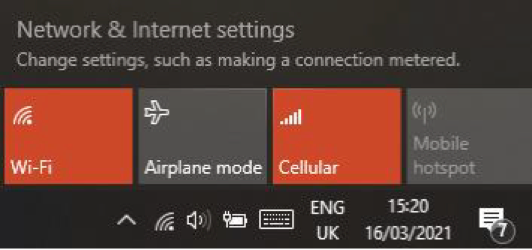
3. Within the Celluar menu. Ensure Roaming Options is set to ‘Roam’, from this menu. Continue into Advanced Options.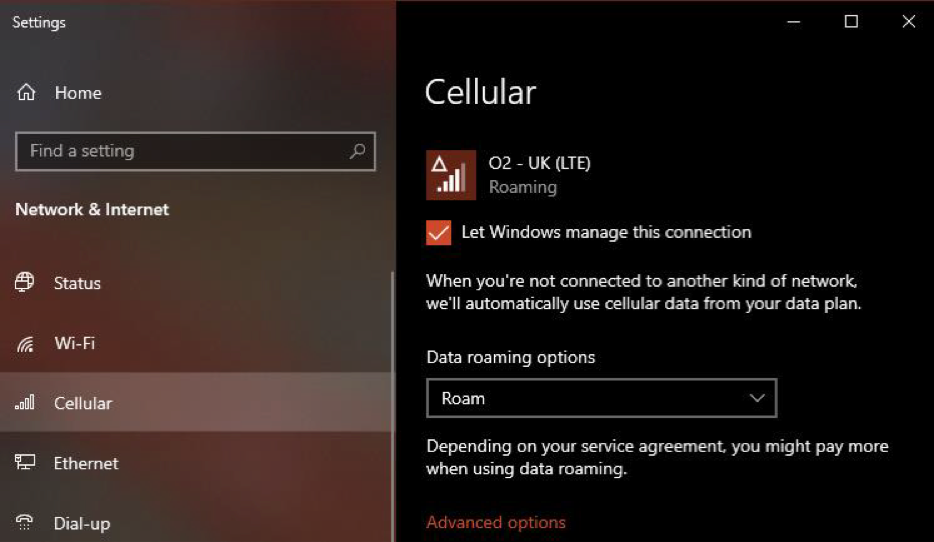
4. Enter a new APN by selecting the Add an APN + symbol.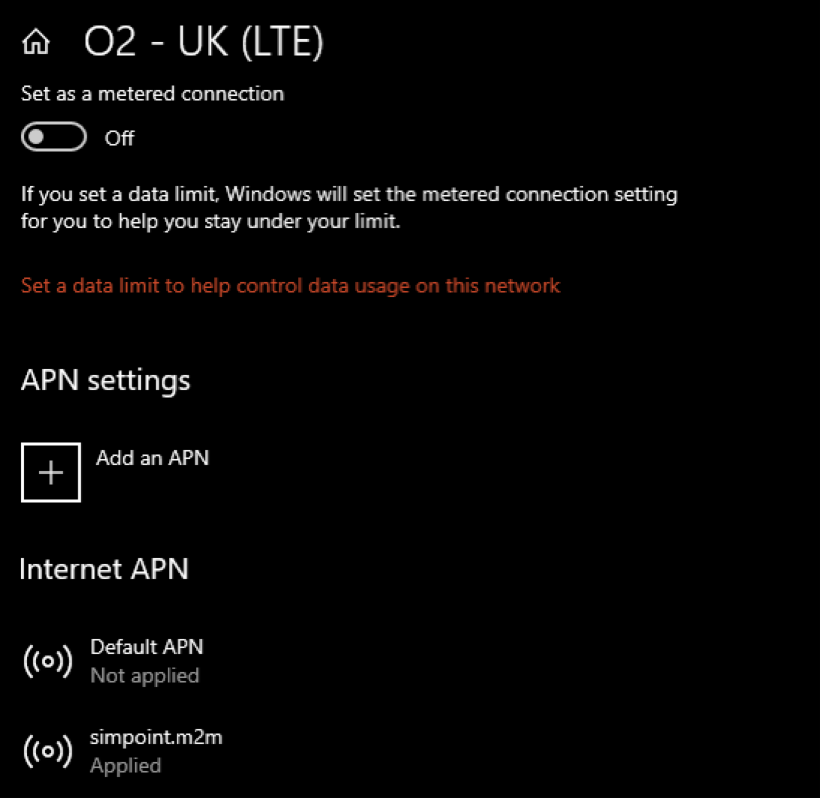
5. Give the APN Profile a name. We suggest: simpoint.m2m Add the APN (string): simpoint.m2m. No username or password is required. Ensure the APN profile will be applied by ticking the ‘Apply this profile’ box. Check the internet connection by opening up the internet browser and opening a tab.
6. Now reopen the iCON application. Once the application is loaded. Head to the devices option on the home screen.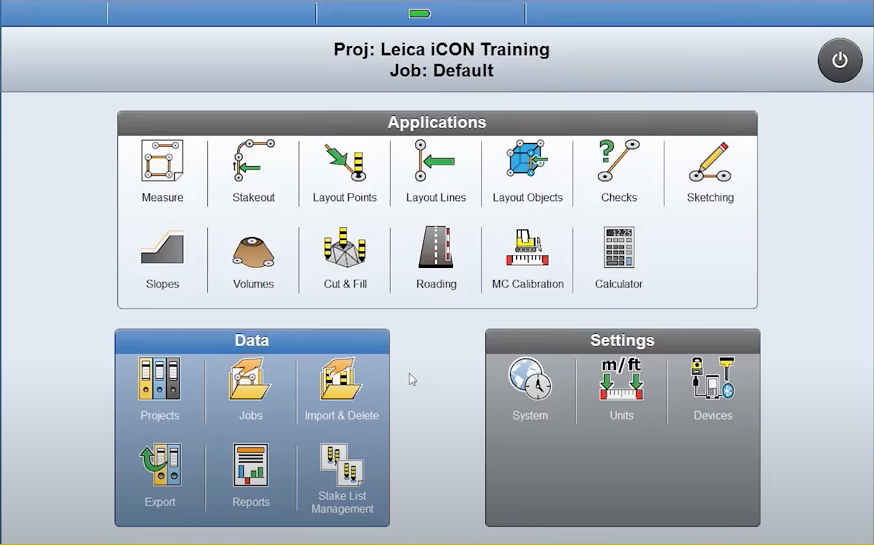
7. Here you can either edit the current device or add a new one. In this example we will add a new device 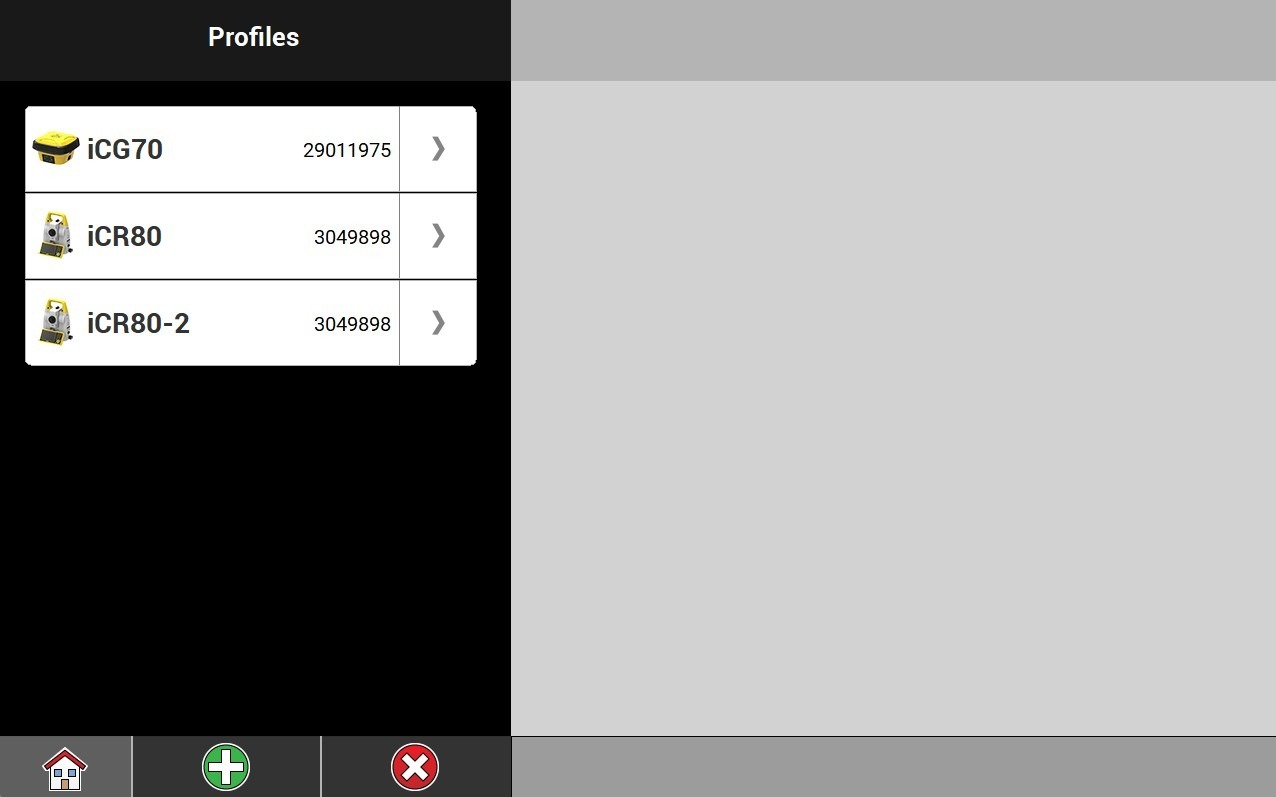
8. We will add an ICON gps 70 profile. Please ask the user to select the correct device. 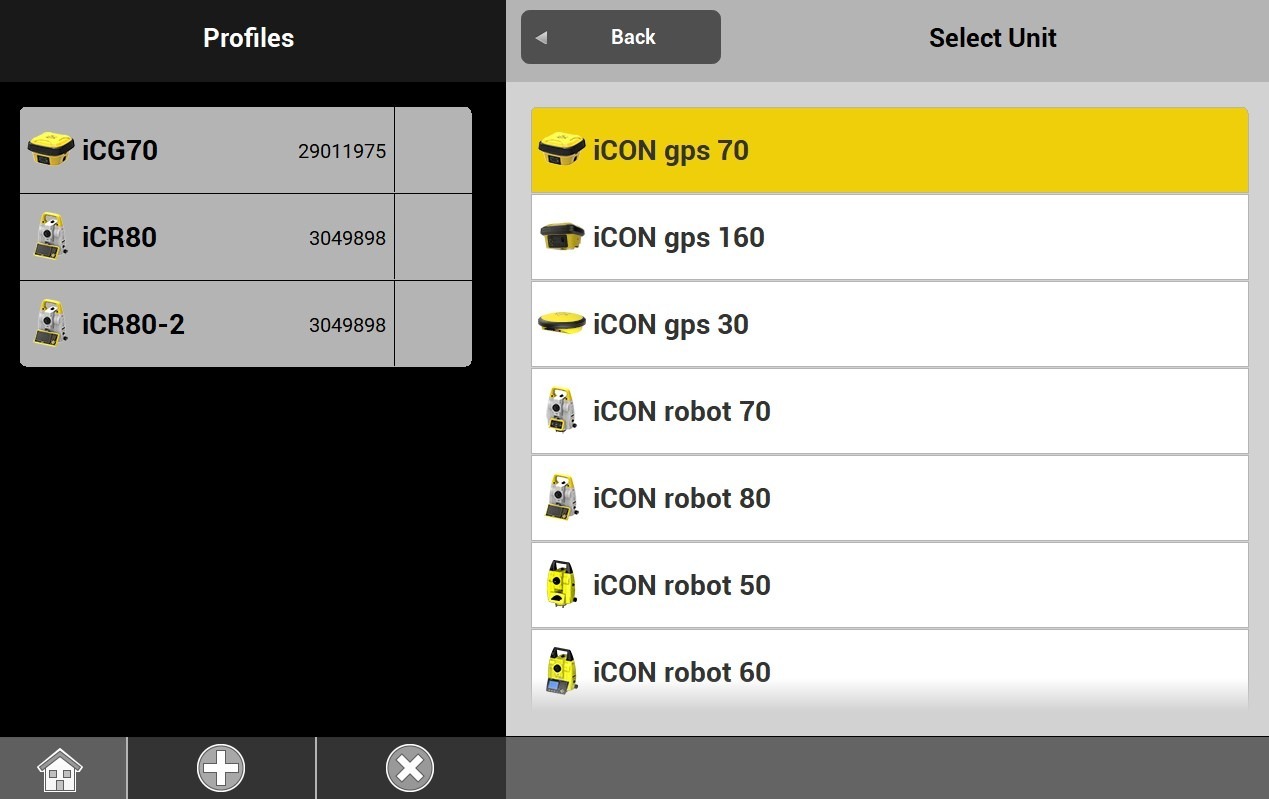
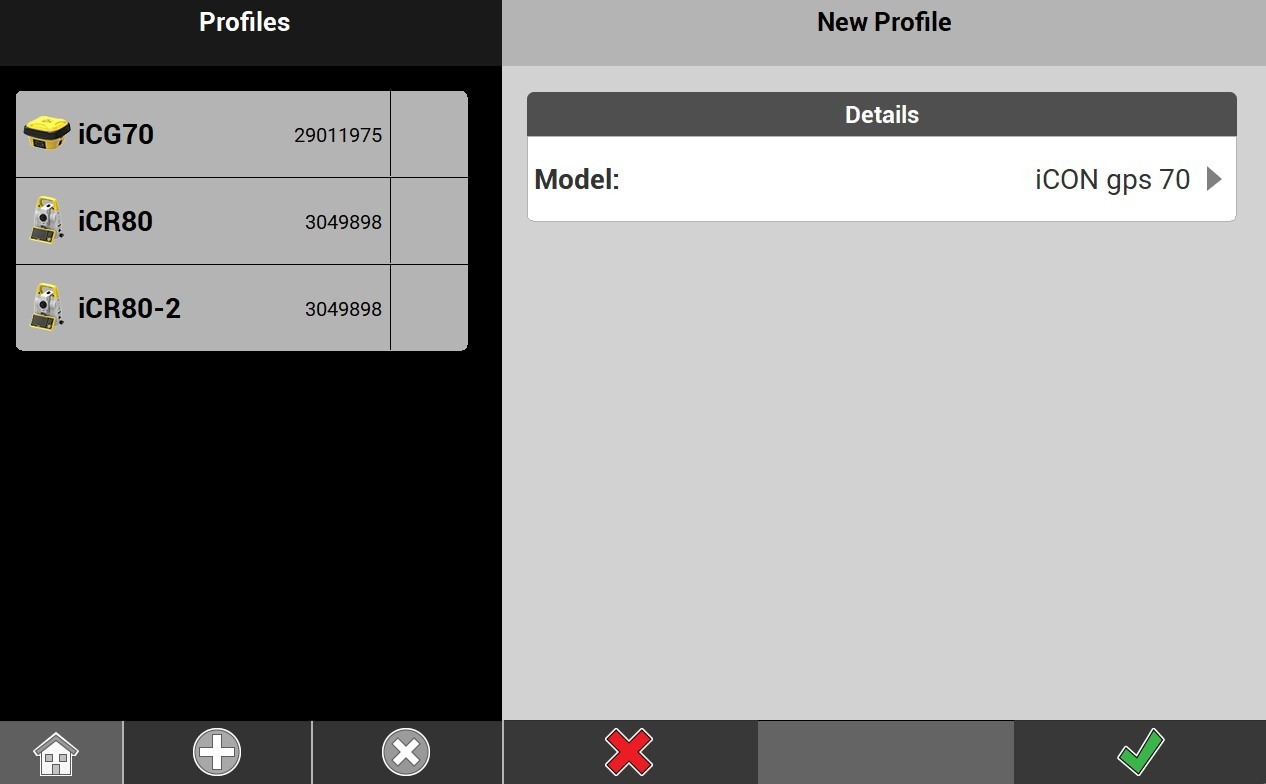
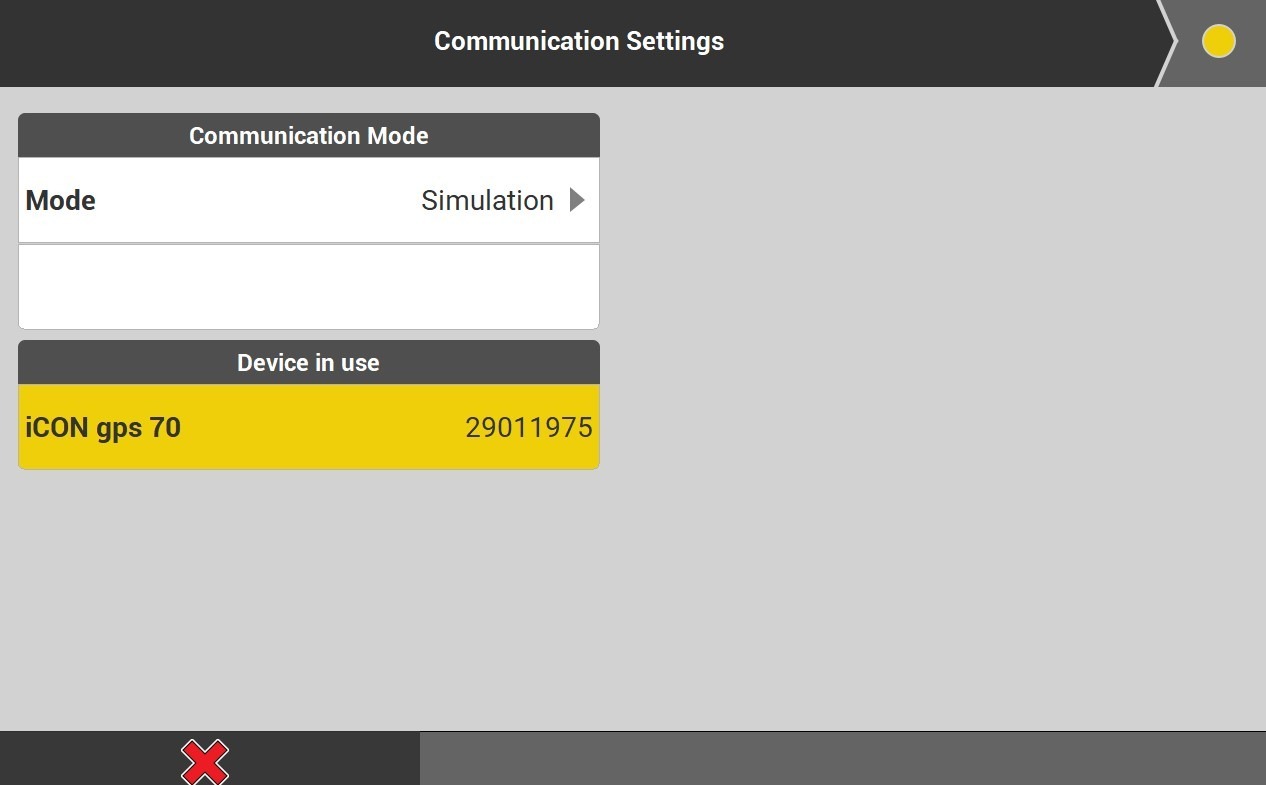
9. Please add ‘New configuration’. The CC80 tablet then performs a bluetooth search in order to find the ICG70 unit. Once the correct serial number is displayed, you can go to the next page. 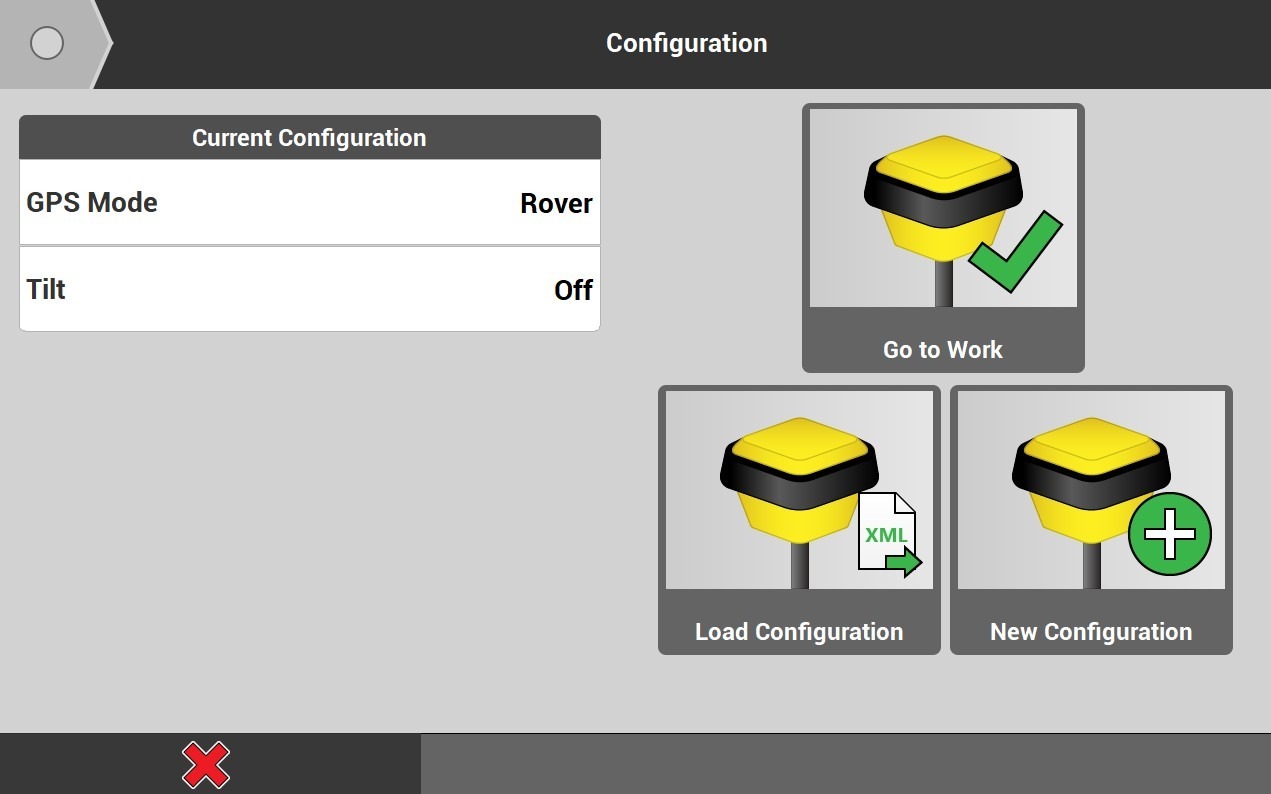
10. Enter basic settings as below. This is where the user would select ‘radio’ if using a base station. 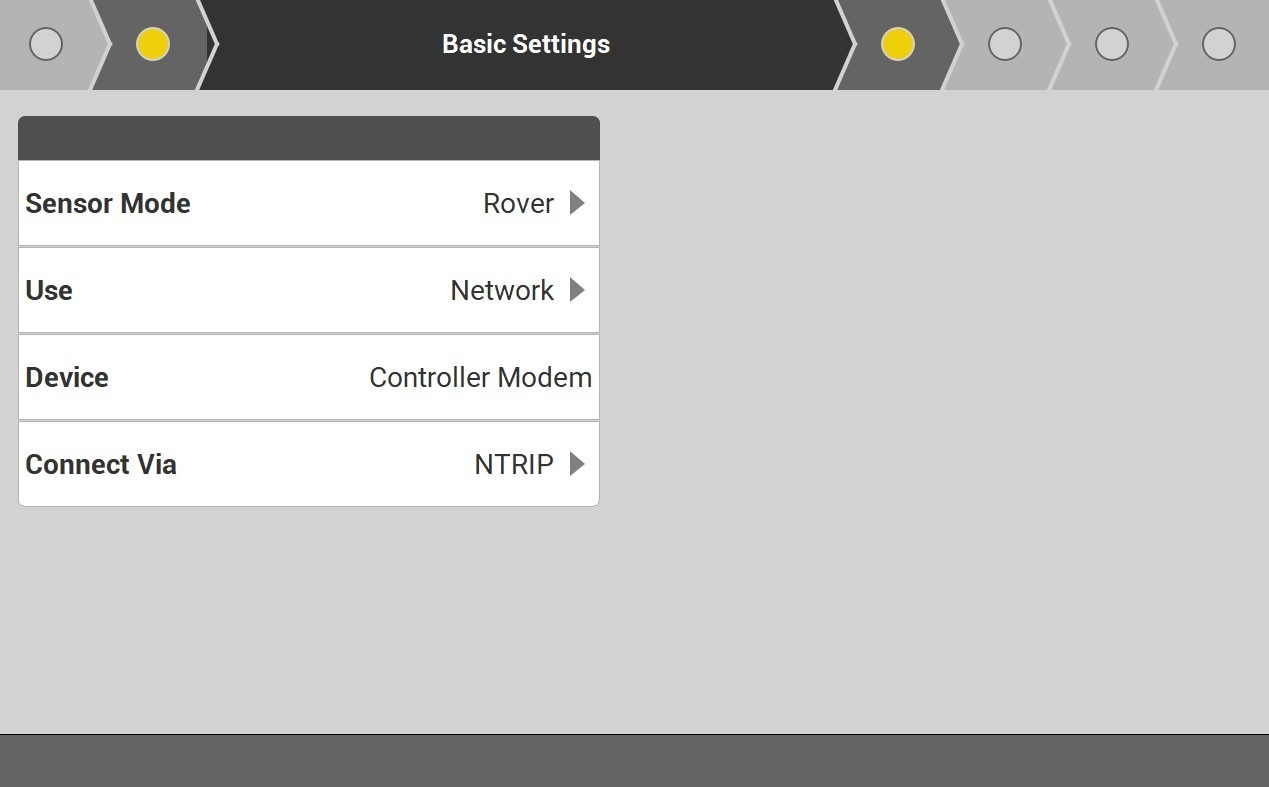
11. Please enter the following details as per image below 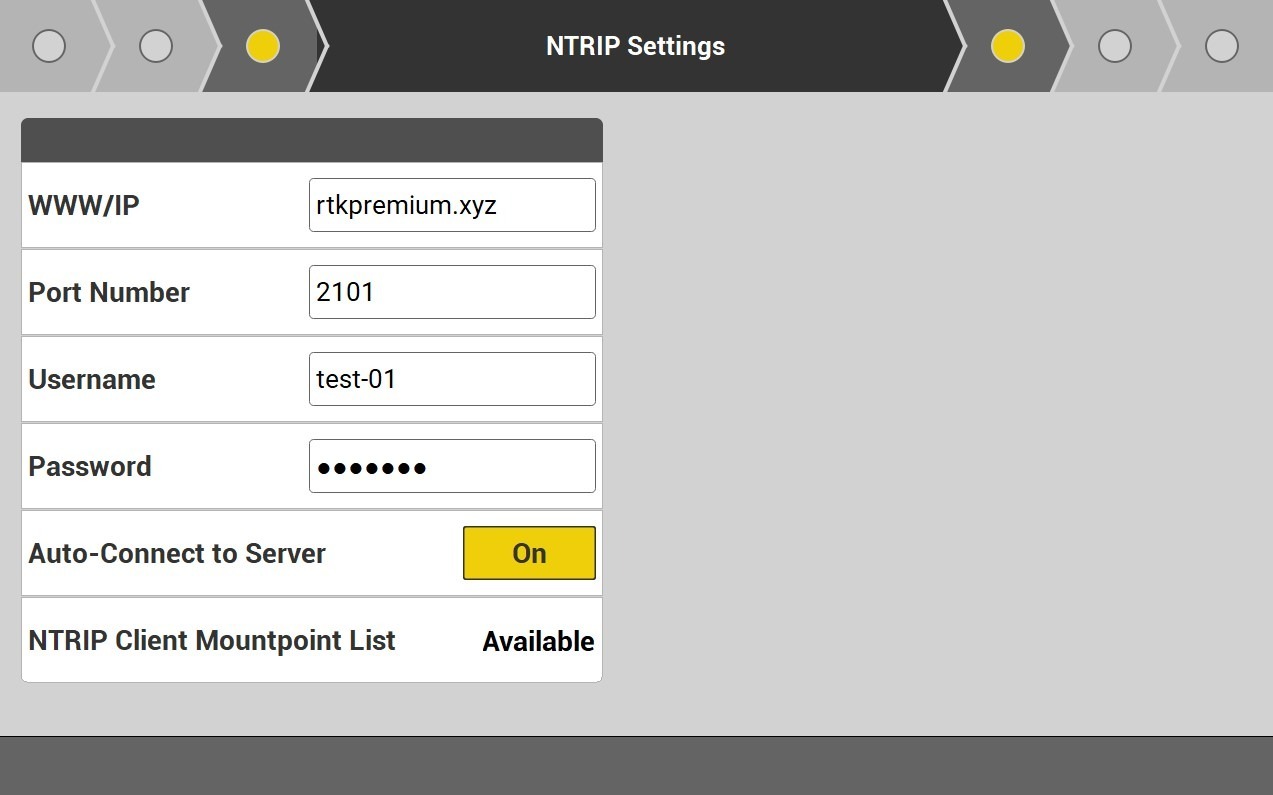
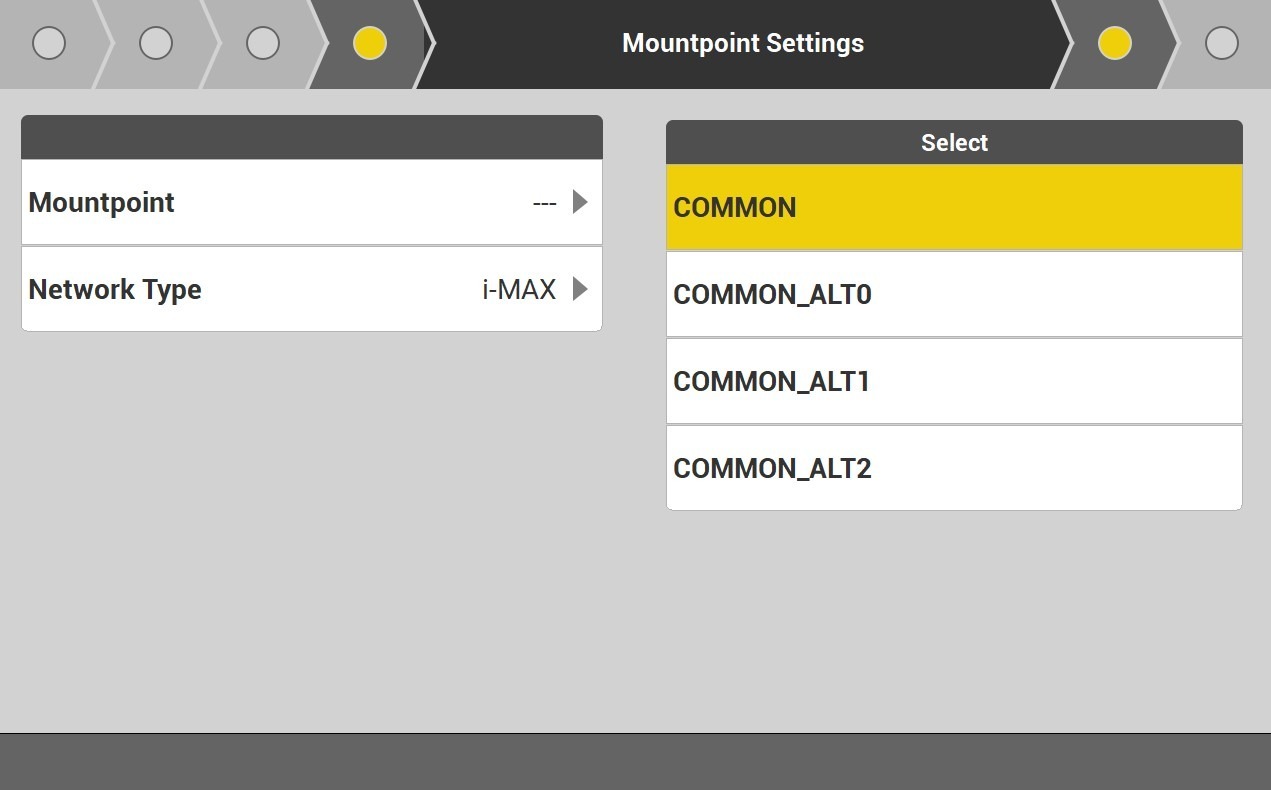
12. Select the Mountpoint COMMON