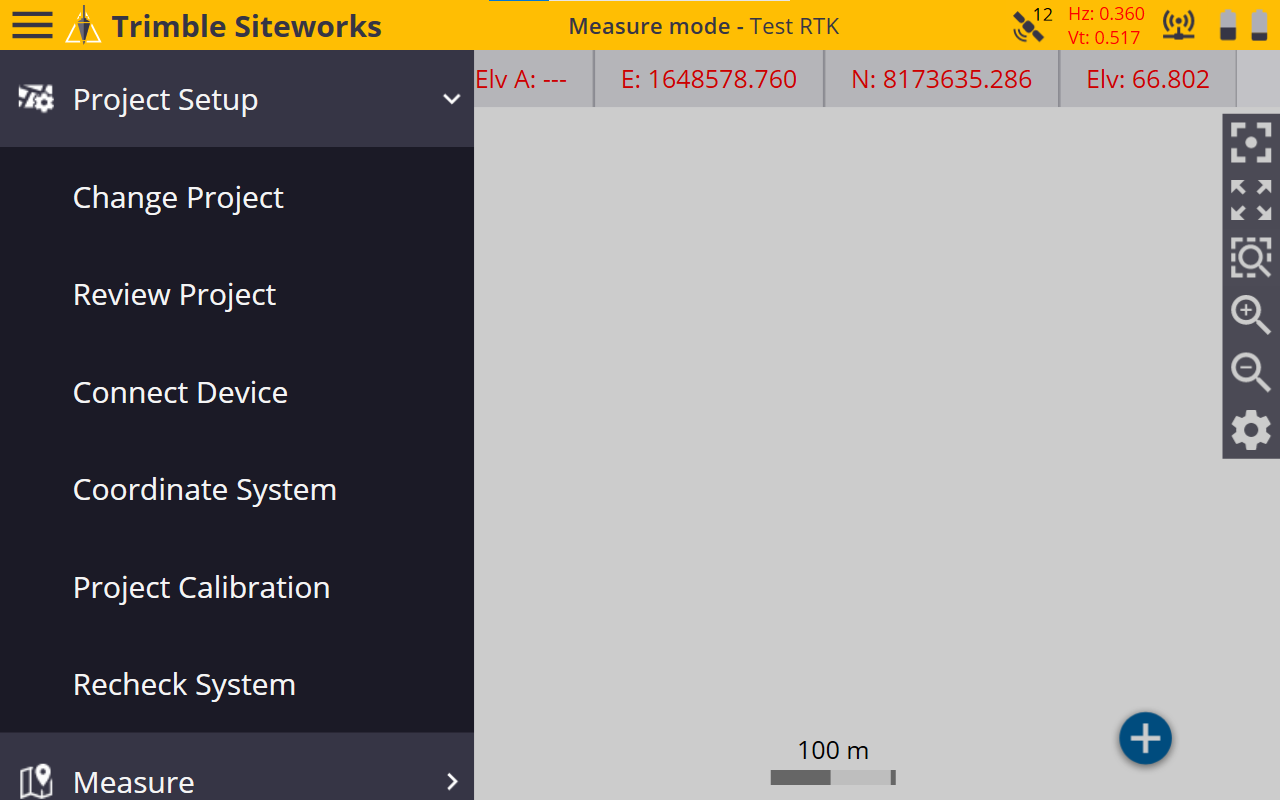
1. Internet connection is secured through the windows browser. Press the wifi button at the bottom right of the screen. 
2. Enter the Cellular settings 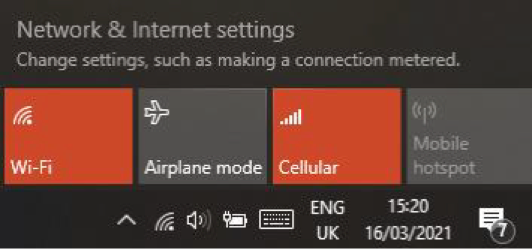
3. Within the Cellular menu. Ensure Roaming Options is set to ‘Roam’, from this menu. Continue into Advanced Options.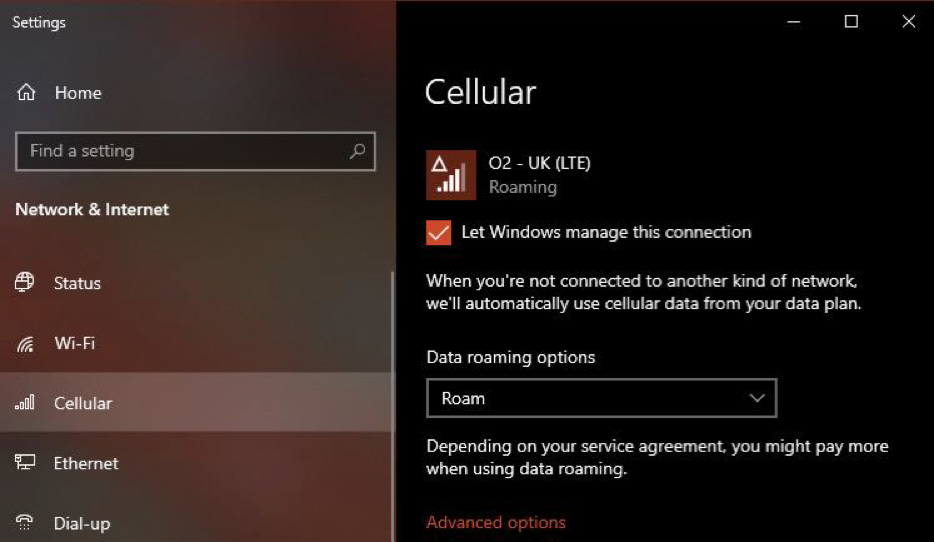
4. Enter a new APN by selecting the Add an APN + symbol.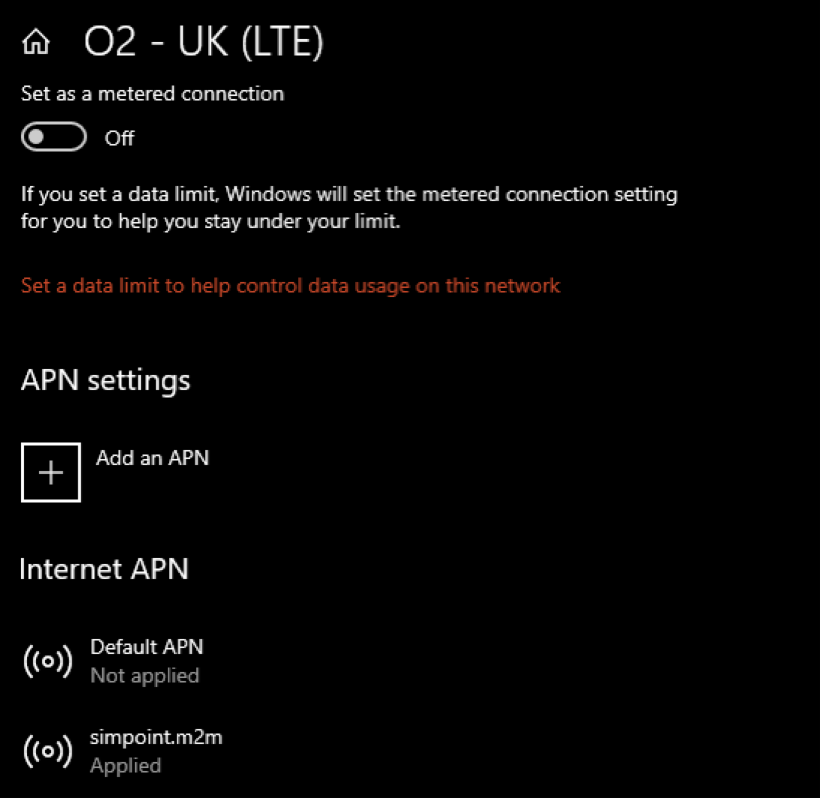
5. Give the APN Profile a name. These settings are for our own Premium sim cards. We suggest: simpoint.m2m Add the APN (string): simpoint.m2m. No username or password is required. Ensure the APN profile will be applied by ticking the ‘Apply this profile’ box. Check the internet connection by opening up the internet browser and opening a tab.
Now reopen the SITEWORKS application. Once the application is loaded. Head to the devices option on the home screen. In this example we assume a device has already been added and paired.
6. Open the VRS connection settings in your device connections page 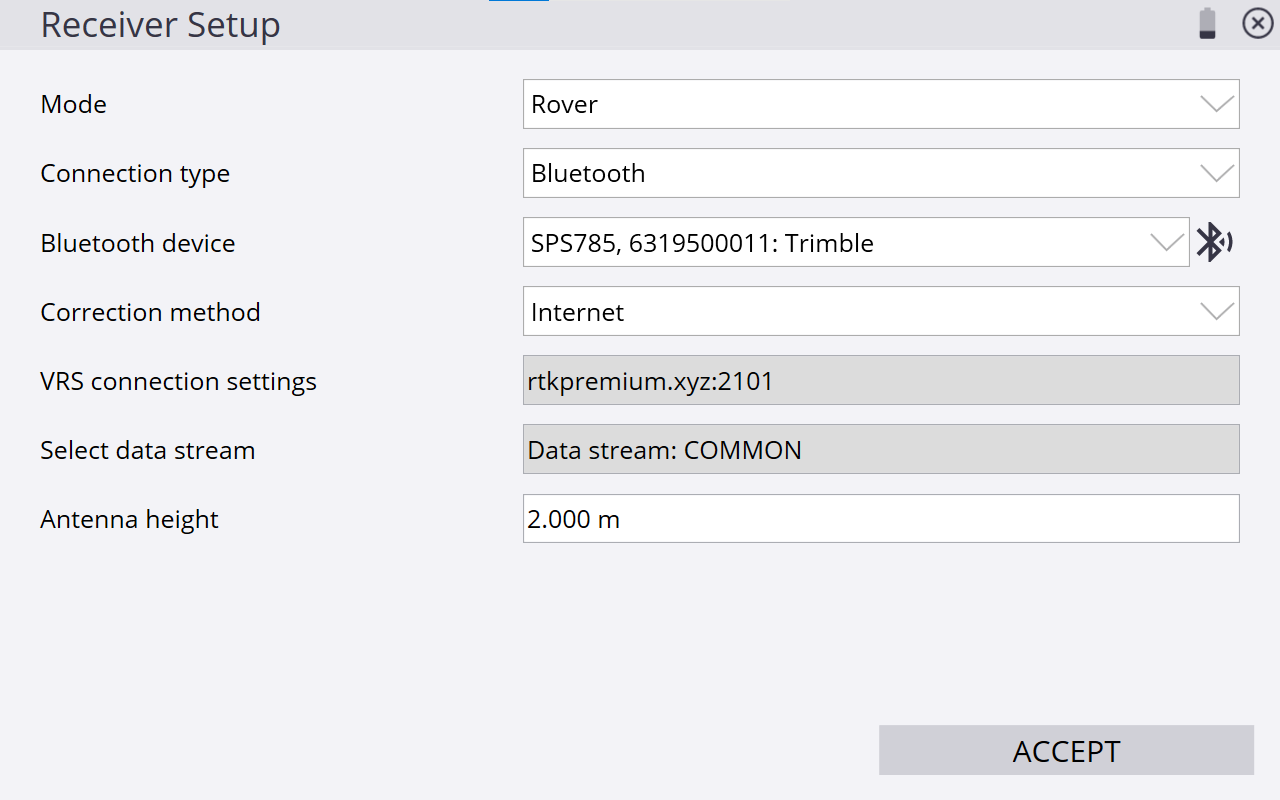
7. Add your Premium Positioning credentials 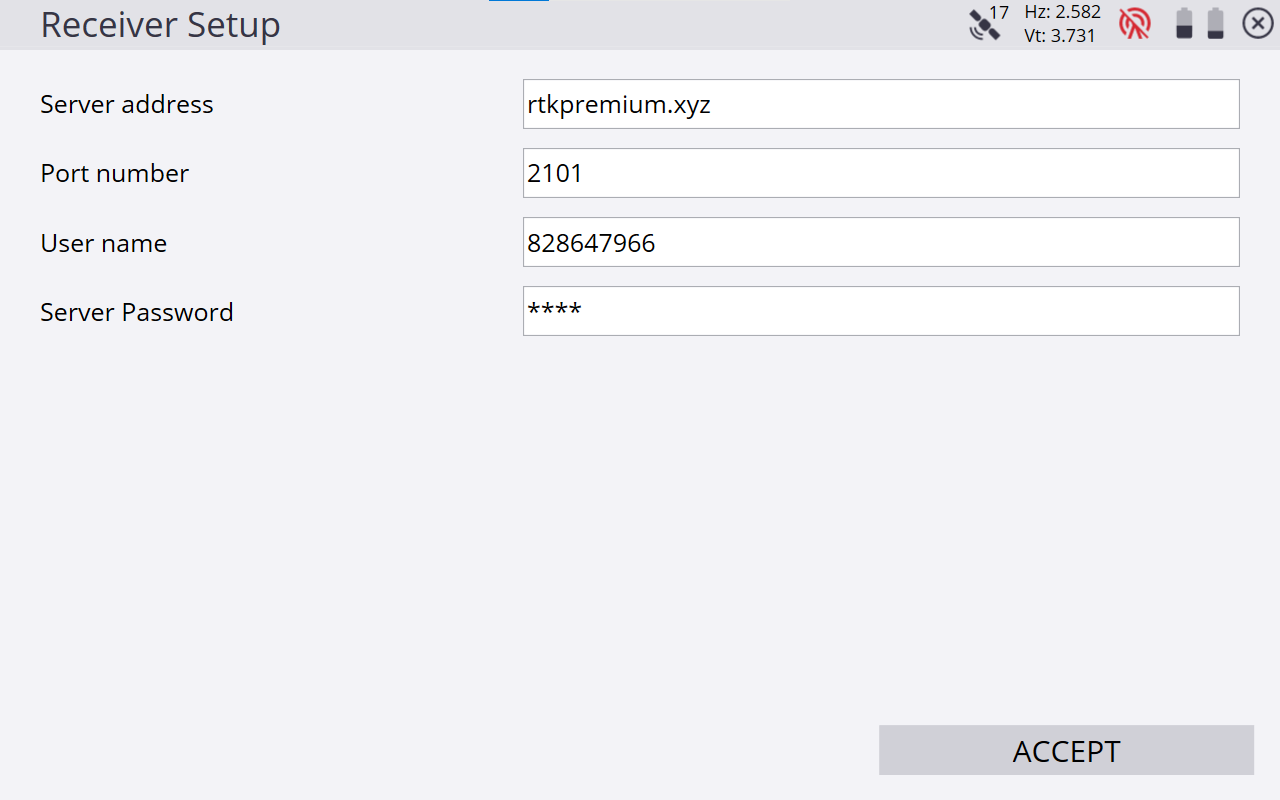
8. Select Mountpoint ‘COMMON’ 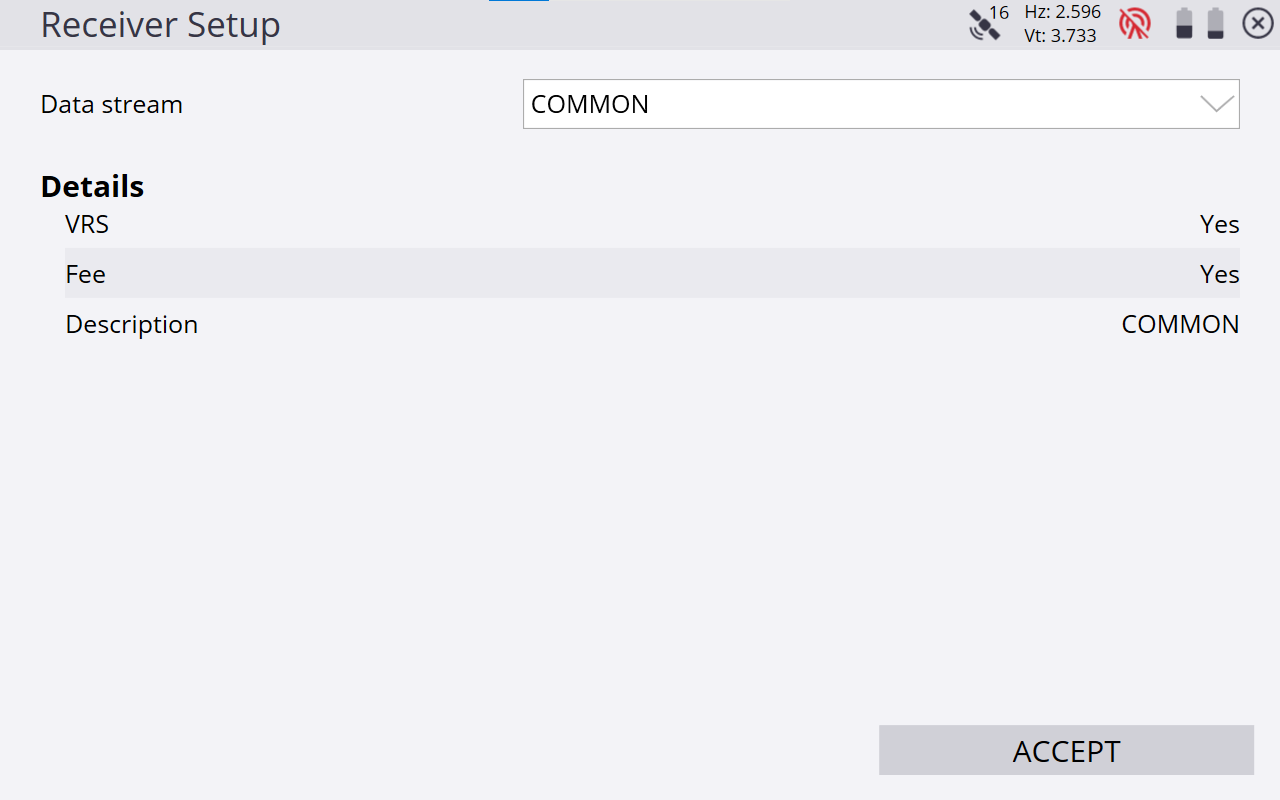
9. Select accept to start receiving corrections 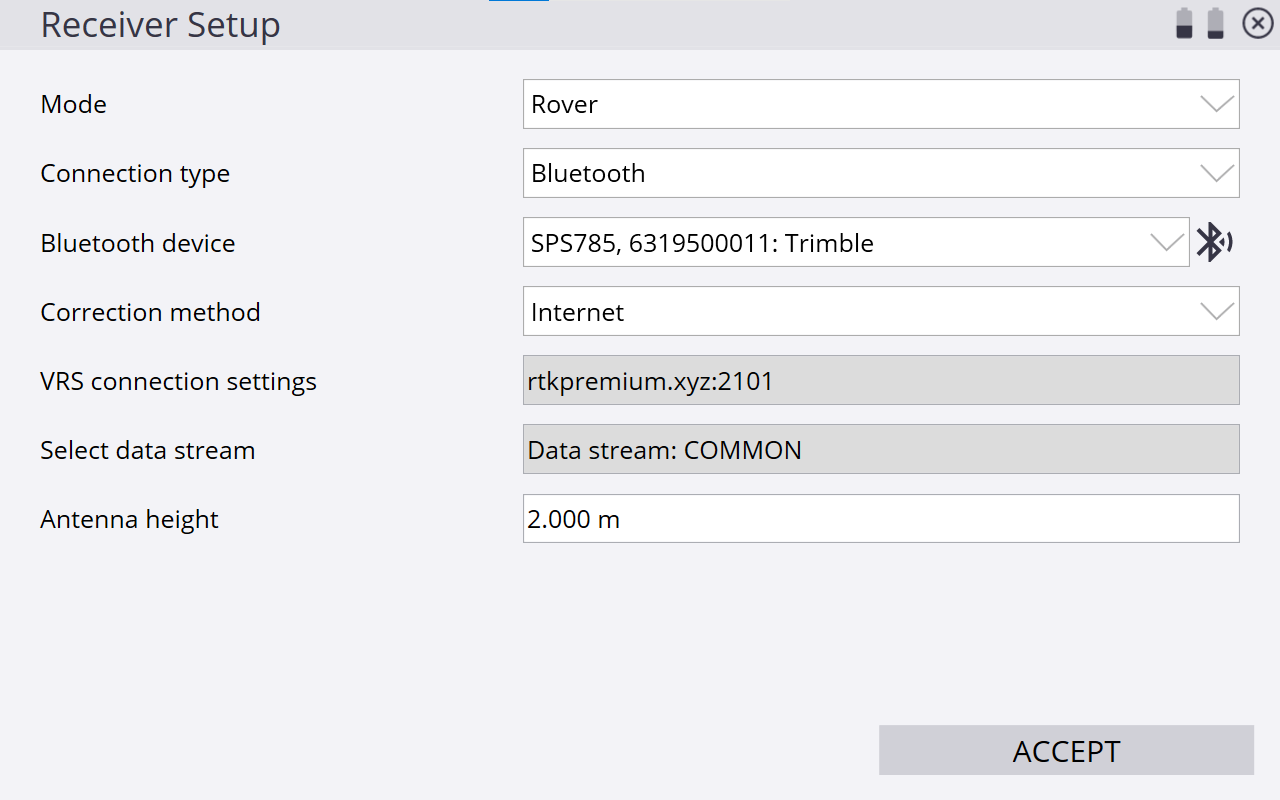
10. The fixed position quality is displayed top right of your screen. 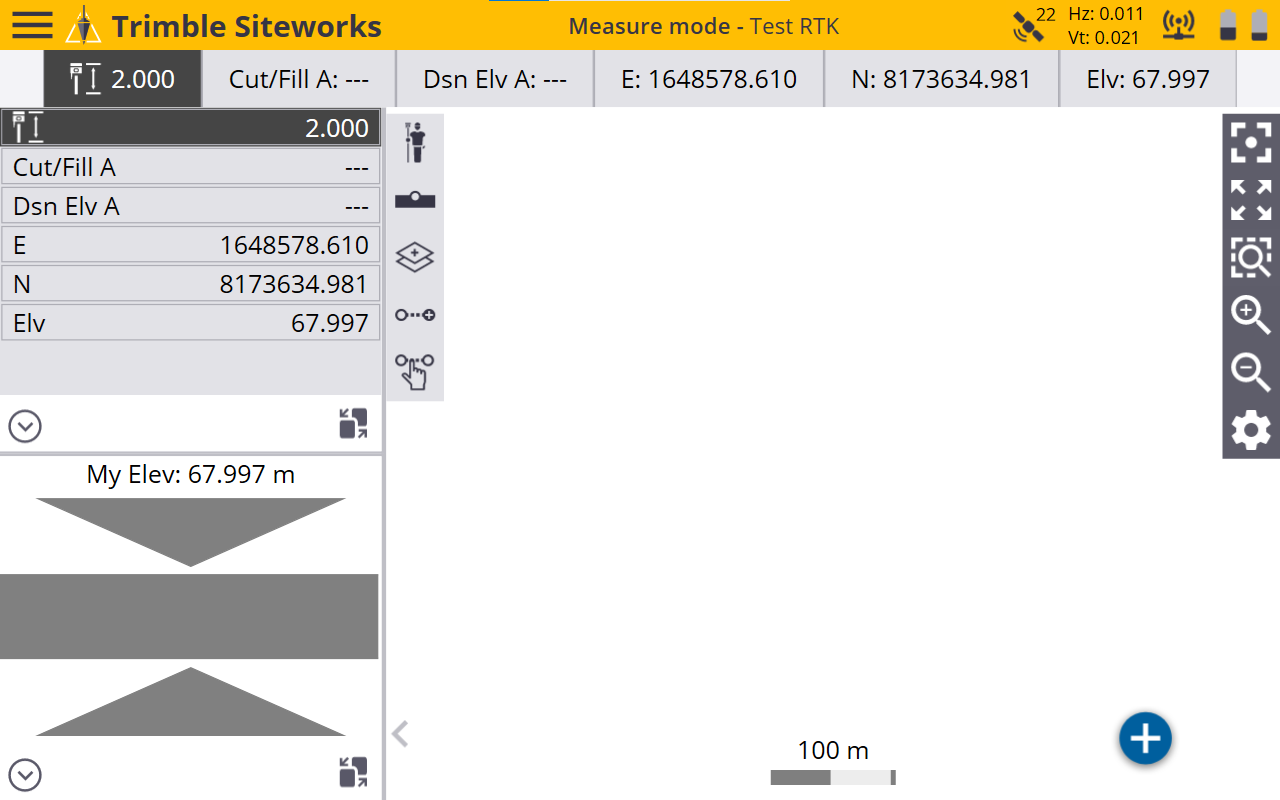
11. You can then re-access the configuration via, menu - project - setup - connect- device